The Best Screen Recording Settings on Mac
The Mac screen recording settings that matter — resolution, frame rate, audio, system sound, and export — so you get a clean take the first time.
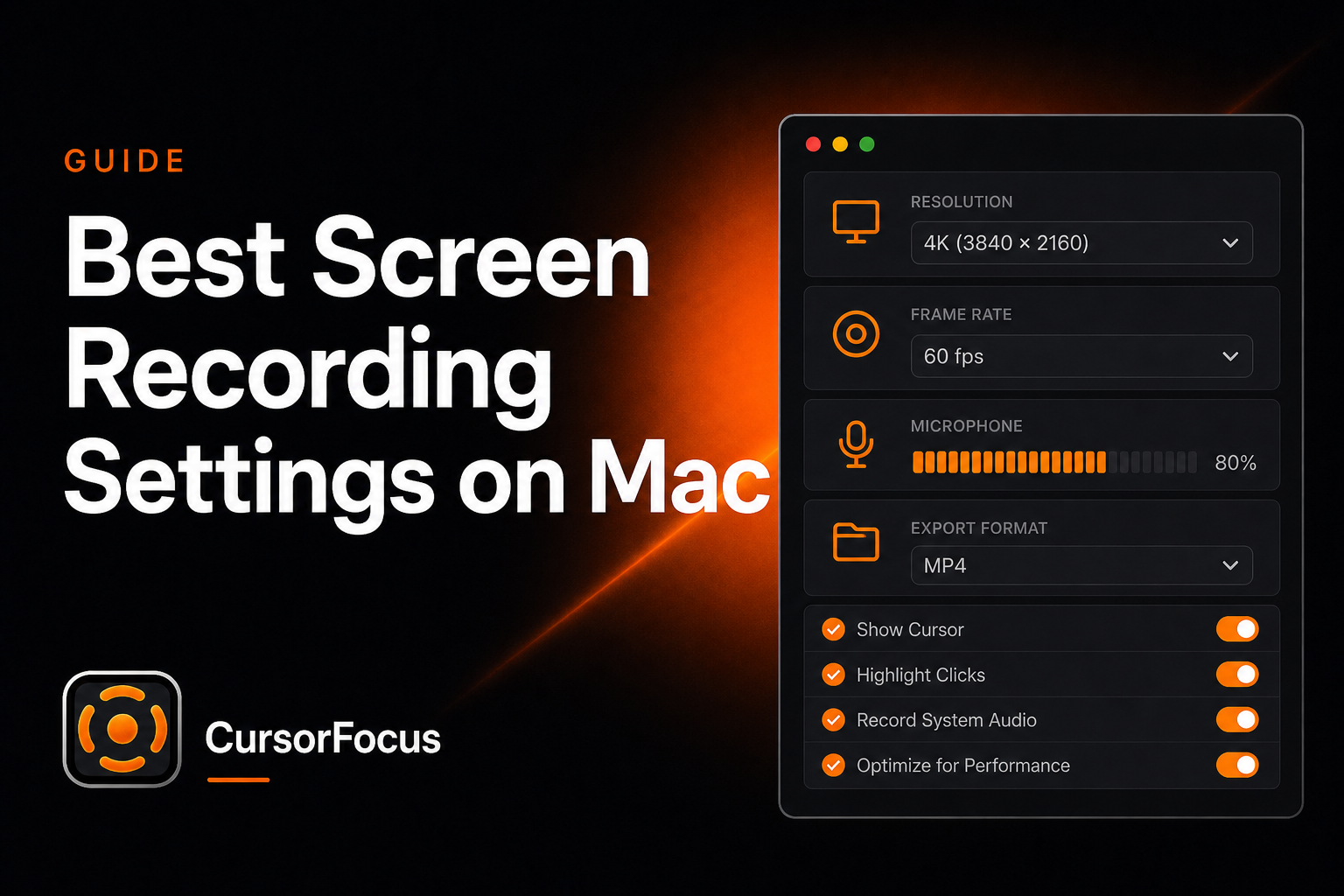
Bad settings rarely get fixed in the timeline. Set them once, save a preset mindset, and re-check the list before every serious recording session.
Resolution: capture native, export for the destination
Record at your display’s native pixel size. On a Retina MacBook that gives you dense text and headroom for zooms or crops later. Export based on where the video lives: 1080p for most landing-page embeds and Slack; 4K when you want YouTube’s higher quality ladder. CursorFocus exports local MP4 up to 4K, so you can choose after the take.
Unsure how width and height map to aspect ratio? Use the free screen resolution calculator.
Frame rate: 60 for motion, 30 for talking slides
Cursor movement, scrolling, and UI animation look clearly better at 60 fps. Webcam-heavy talks or static slides are fine at 30 fps and half the file size. Plan the change with the frame rate conversion calculator before you lock an export preset.
Microphone: external beats built-in every time
The laptop mic hears fans, keys, and the room. A simple USB mic a hand’s width from your mouth will beat post cleanup. Peak around −12 dB — never ride the red. Confirm levels with the microphone test, and read the background noise guide if the room fights you.
System audio: choose before you hit record
If the demo includes app sounds or video playback inside the UI, you need system audio in the take. QuickTime doesn’t give you a clean one-click path for that combo. CursorFocus can record screen, mic, system audio, and camera together in one session.
Cursor visibility: treat it like typography
A default pointer disappears in a small embed. Enlarge the cursor before recording, or use a tool that can scale and smooth the pointer after capture. Calm cursor motion does more for “this looks professional” than another color grade.
Export: MP4 + H.264 unless you control playback
MP4 with H.264 plays in browsers, email clients, and social uploads without drama. Save HEVC for private pipelines where every megabyte matters. For bitrate guidance by resolution and fps, use the video bitrate calculator — too low smears text; too high only slows uploads.
Pre-flight checklist (30 seconds)
Do Not Disturb on. Desktop clear. Demo browser profile ready. Mic selected and level-checked. Native resolution. 60 fps if there will be motion. That short list prevents most re-records.
Record polished videos on your Mac
CursorFocus adds automatic zoom, cursor smoothing, and 4K export to every recording. One-time $79, no subscription.
Get CursorFocus See all features